Managing TAXII Feeds
TAXII Feeds are dedicated channels for receiving TAXII data on ThreatStream. TAXII feeds can be private to your organization or shared with trusted circle organizations. In addition to fostering sharing within ThreatStream, TAXII feeds can also serve data to TAXII clients.
Managing Access to API roots of TAXII Discovery URLs
Org Admins can control access to API roots associated with TAXII Discovery URLs for TAXII v2.0 and v2.1.
To enable or disable access to API roots (TAXII feeds, trusted circles, and search filters):
- In the bottom-left corner of the side navigation panel, click
 > ThreatStream and then click TAXII.
 -
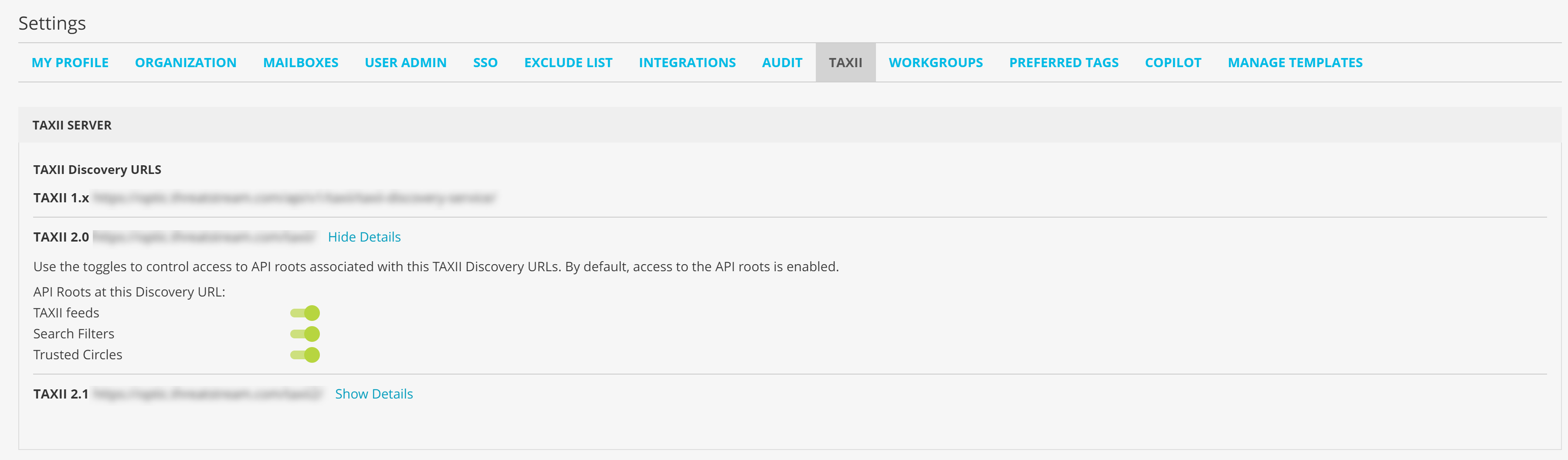
Select the TAXII Discovery URL of your interest and click Show Details.
-
Use the toggle to enable or disable access to TAXII feeds, search filters, and trusted circles associated with the TAXI Discovery URL of your interest. By default, access to all API roots is enabled.
Creating TAXII Feeds on ThreatStream
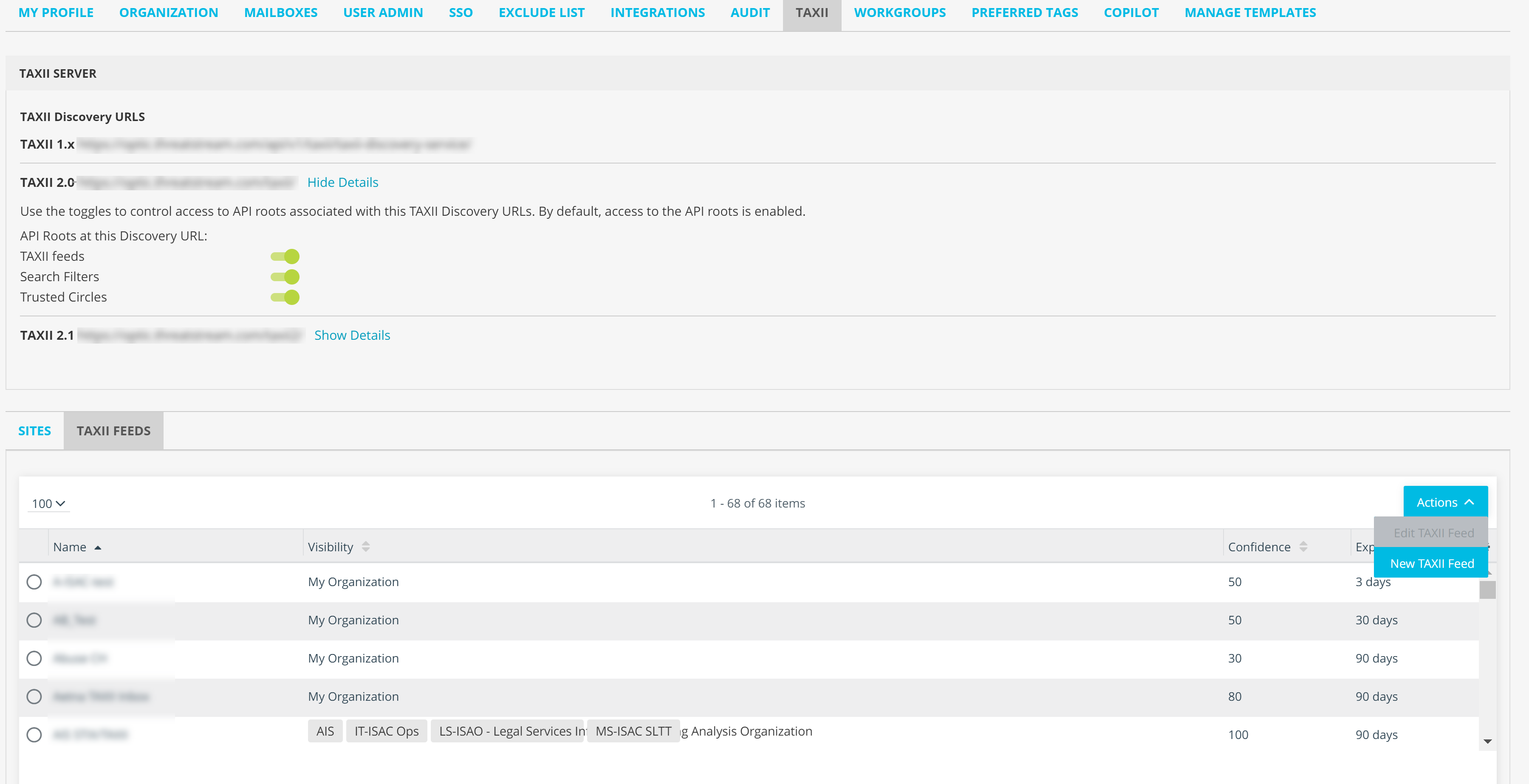
You can create new TAXII feeds on the TAXII tab within ThreatStream settings.
To create a TAXII feed:
- In the bottom-left corner of the side navigation panel, click > ThreatStream and then click TAXII.
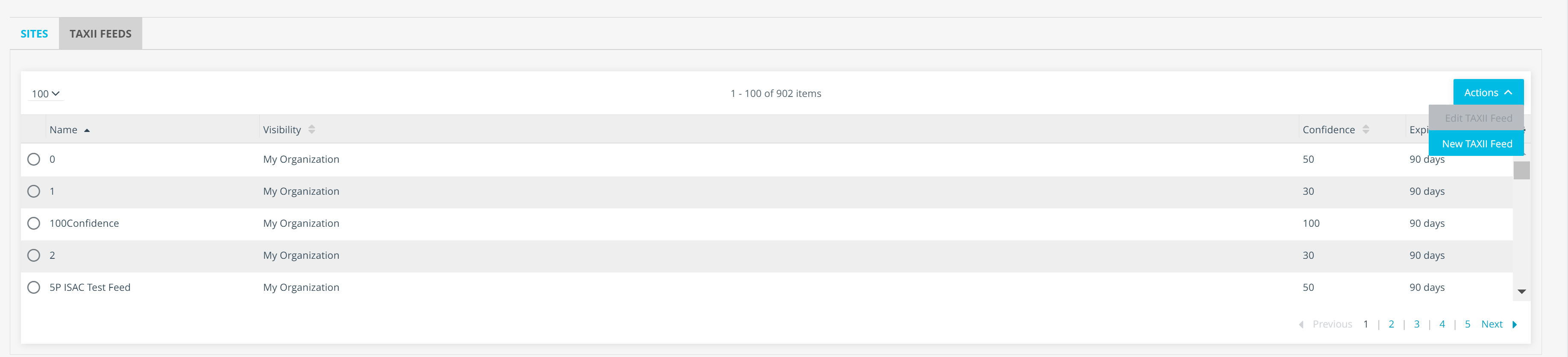
- Click TAXII Feeds.
- Click Actions > New TAXII Feed.
- In the dialog box that opens, enter a unique feed name under Name.
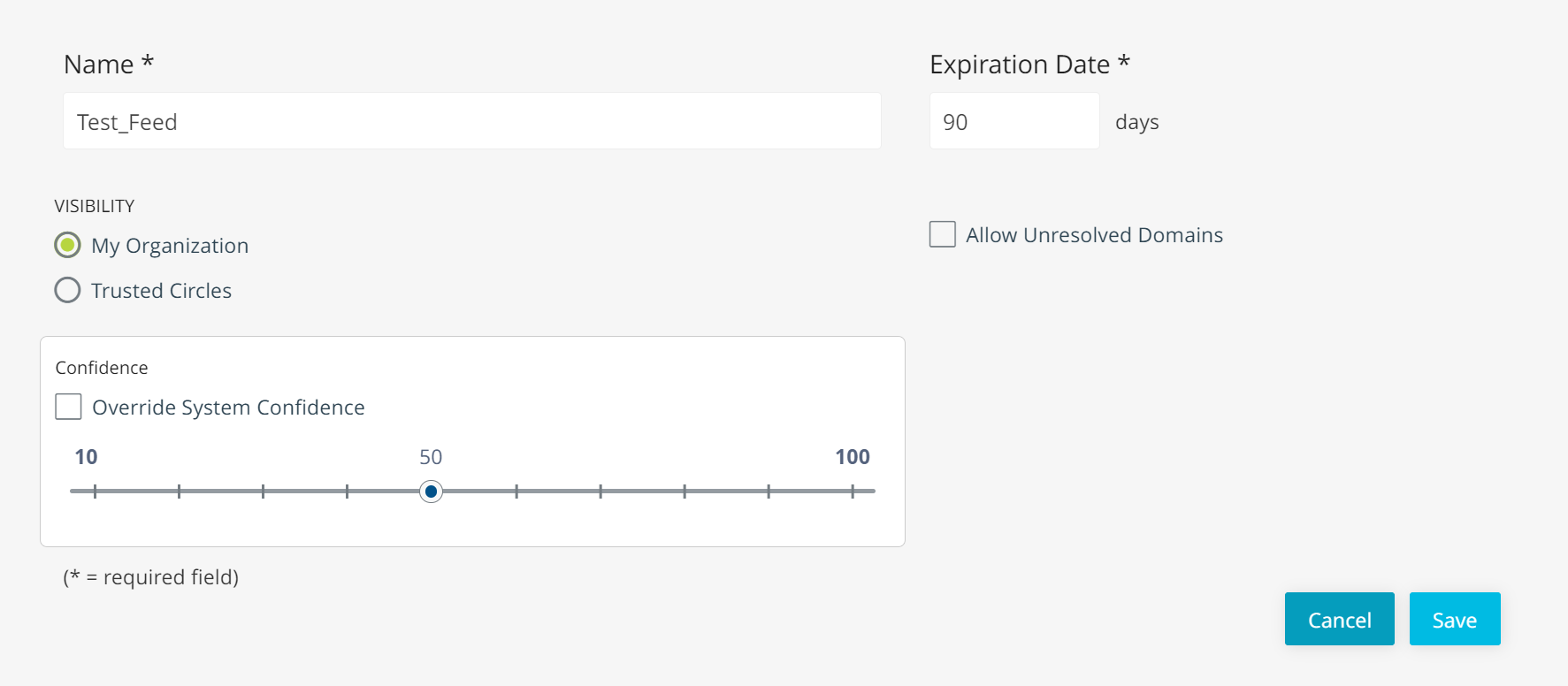
- Under Expiration Date, enter the number of days you want intelligence pushed to this feed to stay active.
-
Select a Visibility for the feed.
Note: Once a TAXII feed has been created, its Visibility can not be edited. -
(Optionally) To skip strict checking of unresolved domains during TAXII imports, select Allow Unresolved Domains.
-
Select a default Confidence score for the intelligence pushed to the feed.
To use the selected default Confidence score over ThreatStream Confidence scores, select Override System Confidence.
- Click Save.
Editing TAXII Feeds
You can edit configured TAXII feeds on the TAXII settings page.
To edit a TAXII feed:
- In the bottom-left corner of the side navigation panel, click > ThreatStream and then click TAXII.
- Click TAXII Feeds
- On the TAXII Feeds tab, click Actions > Edit TAXII Feed.
- Make required changes.
- Click Save.
Deleting TAXII Feeds
TAXII feeds cannot be deleted from the ThreatStream UI. Please contact Anomali support for assistance.